
If you work with Google Sheets spreadsheets that have a lot of tabs, you've probably looked for a tool to help manage them. There are a few options out there, and they're quite different in what they do and how well they do it.
This post compares three tools: Google Sheets Tab Search, Sheets Manager by Ablebits, and Sheets Organizer. The goal is to give you an honest picture of what each one does well, where each one falls short, and who each one is actually a good fit for.
A quick disclosure: Sheets Organizer is the tool we built. We've tried to be fair to the alternatives, but you should factor that in when reading.
The Tools at a Glance
| Google Sheets Tab Search | Sheets Manager | Sheets Organizer | |
|---|---|---|---|
| Type | Chrome extension | Google Workspace add-on | Chrome extension |
| Price | Free | Paid (30-day free trial) | Paid (30-day free trial) |
| Search tabs by name | |||
| Folder grouping | |||
| Pin frequently used tabs | |||
| Color-code folders | ✅ (tabs only) | ||
| Bulk tab operations | |||
| Sidebar load time | Instant | ~8 seconds | Instant |
| Tab navigation speed | Instant | ~3 seconds | Instant |
A Note on Speed Before We Get Into Features
Speed is worth addressing upfront because it affects how useful a navigation tool actually is in practice.
Google Workspace add-ons — like Sheets Manager — run through Google's servers. That architecture introduces some latency. From our testing, Sheets Manager takes around 8 seconds to load its sidebar, and about 3 seconds to navigate to a tab after you click it in the panel.
Chrome extensions, on the other hand, run locally in your browser. Both Google Sheets Tab Search and Sheets Organizer open essentially instantly.
This matters because the whole point of these tools is to save you time navigating. If opening the sidebar takes longer than just scrolling to find the tab yourself, the tool is working against you rather than for you.
Pro Tip
This was actually the reason we rebuilt Sheets Organizer from a Google Workspace add-on into a Chrome extension. Rebuilding it as a Chrome extension brought both of those down to effectively zero.
Google Sheets Tab Search
What it is: Google Sheets Tab Search is a free Chrome extension that adds a search bar to the native "All sheets" menu in Google Sheets. When you click the burger menu icon at the bottom left of your spreadsheet, a search field appears at the top. You type part of a tab name, the list filters in real time, and you click or press Enter to navigate.
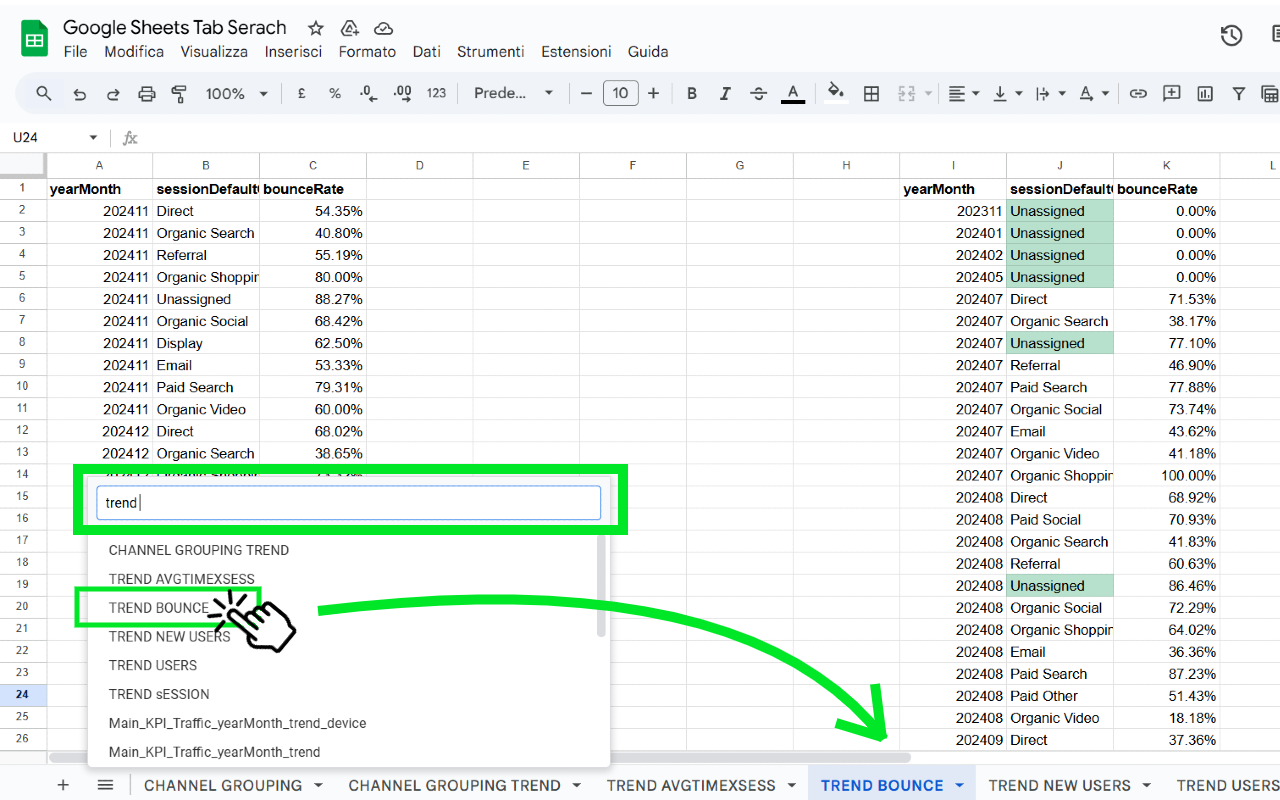
What it does well:
- Zero configuration. Install it and it works immediately on any Google Sheet.
- Fast and lightweight. It doesn't add any sidebar or overlay — it just enhances the existing native menu.
- Completely free with no limitations.
What it doesn't do:
- No folder grouping. All tabs remain in a flat list.
- No pinning. There's no way to surface your most-used tabs.
- No color-coded folders.
- No bulk tab operations.
Who it's a good fit for: Someone who works with spreadsheets that have a moderate number of tabs — maybe 20 to 40 — and whose main friction is just finding a specific tab quickly. If your only problem is navigation speed, this tool solves it with minimal overhead.
Who it's not a good fit for: Anyone who needs to bring structure to a large, growing spreadsheet, or who shares their spreadsheet with a team and wants everyone to be able to navigate it clearly without guidance.
Sheets Manager by Ablebits
What it is: Sheets Manager by Ablebits is a Google Workspace add-on that opens as a sidebar showing all your tabs in a tree view. It's built primarily for bulk tab operations — hiding, unhiding, locking, unlocking, reordering, coloring, copying, and moving multiple sheets at once.
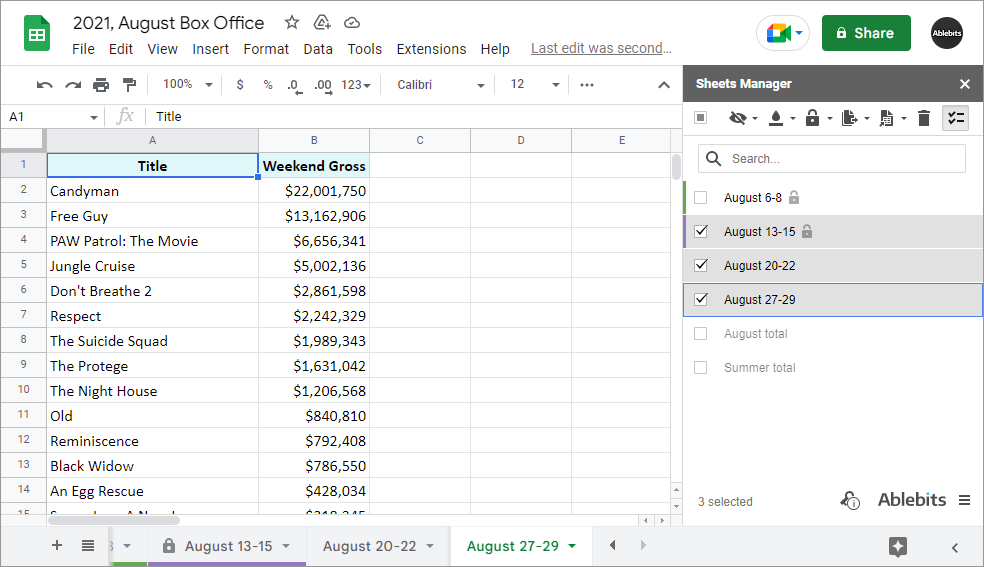
What it does well:
- Bulk operations are genuinely useful. If you need to hide 20 sheets at once, or copy multiple tabs to a new spreadsheet, Sheets Manager handles that cleanly.
- The tree view shows hidden sheets, protected sheets, and colored tabs at a glance.
- Search by tab name is included.
- Ablebits is a well-established company with solid support documentation.
What it doesn't do:
- No folder grouping. Tabs are listed flat, just like the native tab bar.
- No pinning.
- The add-on architecture means the sidebar takes around 8 seconds to load, and navigating to a tab after clicking it takes about 3 seconds.
Who it's a good fit for: Someone who needs to do a lot of tab management operations — protecting, hiding, reorganizing, or copying sheets in bulk. It's more of an admin and maintenance tool than a daily navigation tool.
Who it's not a good fit for: Someone whose main need is fast, frequent navigation inside a large spreadsheet. The load time makes it less practical for that kind of use.
Sheets Organizer
What it is: A Chrome extension that adds a sidebar to Google Sheets with three main features: folder grouping, tab search, and tab pinning.

What it does well:
- Folders. You can group tabs into color-coded folders — Finance, HR, Clients, Templates, and so on — giving your spreadsheet a clear structure that doesn't exist natively in Google Sheets.
- Search. Type part of a tab name and results filter instantly across all folders. No need to know which folder a tab is in.
- Pinning. Tabs you use every day can be pinned to the top of the sidebar so they're always one click away.
- Speed. As a Chrome extension, the sidebar opens instantly and tab navigation is immediate.
What it doesn't do:
- No bulk tab operations. If you need to hide or lock multiple tabs at once, Sheets Manager handles better.
- No cross-spreadsheet features. Sheets Organizer works within a single spreadsheet at a time.
Who it's a good fit for: Someone managing a spreadsheet with many tabs — typically 30 or more — who needs both structure and fast navigation on a daily basis.
Who it's not a good fit for: Someone who primarily needs bulk operations across many sheets, or someone with a small, simple spreadsheet where the native tab bar is sufficient.
How to Choose
The three tools solve different problems, and in some cases they're not really competing with each other.
- If your only problem is finding a tab quickly and you have a manageable number of tabs: Google Sheets Tab Search is a reasonable, free, and lightweight option.
- If you need to do bulk operations: Sheets Manager is more capable for that, despite the load time. Think of it as a tab administration tool.
- If you're navigating a large spreadsheet frequently and need both structure (folders) and speed: Sheets Organizer is built for that use case.
Conclusion
There's no single best tool here — it depends on what you actually need. Hopefully this comparison gives you enough to make a reasonable choice for your situation.