
Introduction
We've all been there: you open a Google Sheets file and are immediately greeted by a wall of tabs, "Copy of Budget," "Final Budget," "Draft," "Backup," "Data," "Test Sheet," "Random", and you find yourself spending more time hunting through tabs than actually working. The chaos is real, and the frustration even more so. Fortunately, you don't have to settle for chaos. With the right tools and mindset, you can turn your disorganized sheets into a structure that makes sense, fast, intuitive, and clean.
In this post, we'll walk through how to master Google Sheets organization, from understanding the pain points, through practical organization strategies, to using tools (like Sheets Organizer) that can streamline the entire process. By the end, you'll see how clarity can restore productivity, reduce errors, and sharpen your focus.
The Pain Points: Why Disorganized Sheets Drain Productivity
- Time wasted searching for the right tab: Each misplaced or poorly named sheet adds seconds (or minutes) to your workflow. Over weeks or months, this accumulates.
- Inconsistent formatting / duplication of effort: When sheets aren't managed well, you often have multiple versions ("Budget v2," "Final Budget," "Copy of Budget"). They may look alike but have tweaks in different places, which causes confusion.
- Mental clutter: Seeing dozens of untitled or ambiguously named tabs is distracting. It diverts mental energy from strategic thinking to just "where did I put that sheet?"
- Collaboration chaos: When you're working with a team, poorly organized sheets magnify confusion, people overwrite, duplicate work, or insert data in the wrong sheet.
What Good Organization Looks Like
To move from chaos to clarity, good organization in Google Sheets should aim for:
- Hierarchy and structure: Logical grouping of related sheets.
- Easy access: Pinning or highlighting frequently used sheets so they're always near the top.
- Searchability: Instant access to sheets through search
- Clear naming conventions: Consistent naming (dates, version numbers, topic labels) that allow quick recognition.
How Sheets Organizer Helps Transform Your Workflow
Sheets Organizer (a Chrome Extension) offers features that map directly onto what good organization requires:
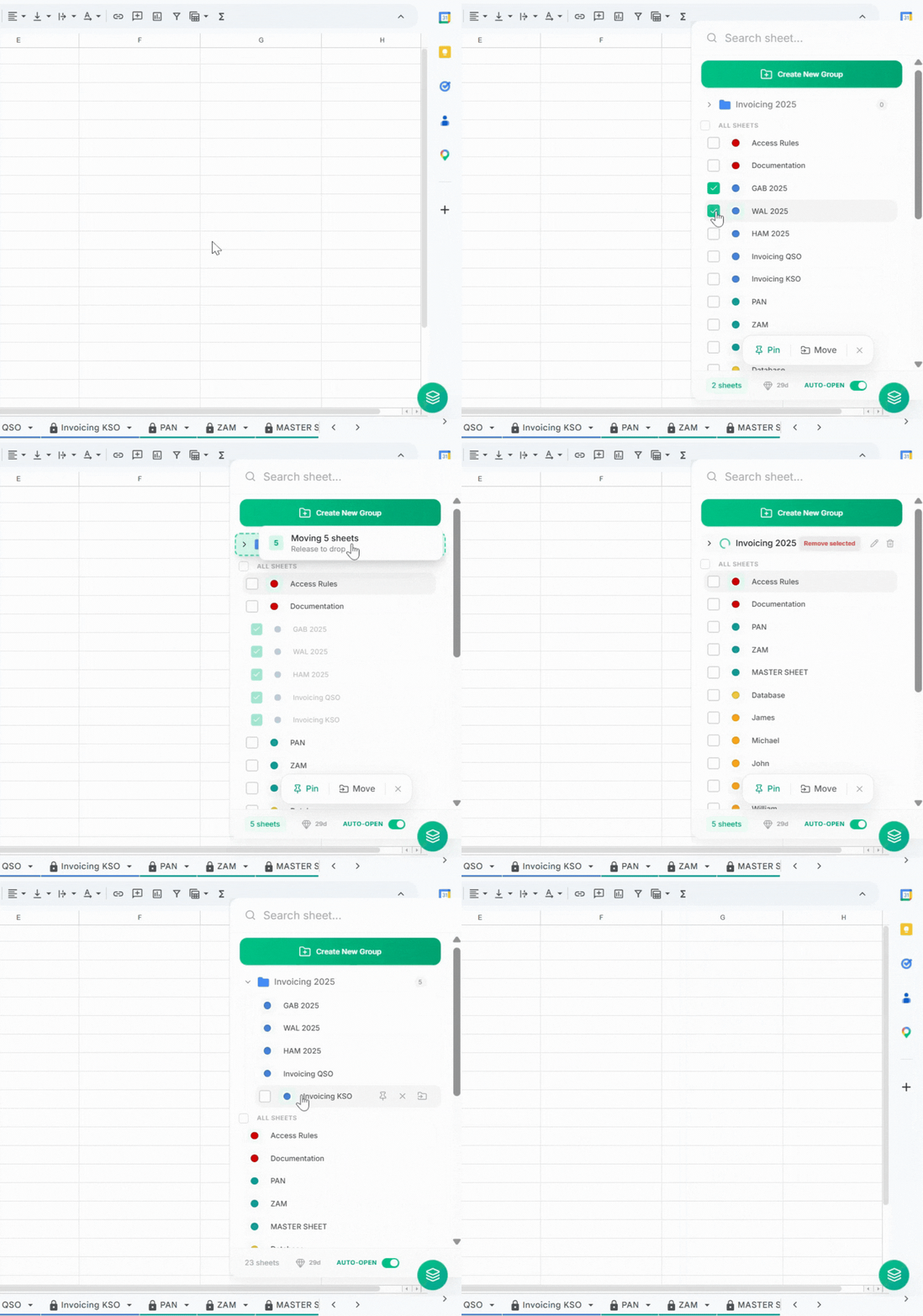
1. Group Sheets Into Folders
You can create folders to group sheets by project, topic, or time period. Folders let you build a structure that matches how you think. Try Sheets Organizer to get started with folder organization.
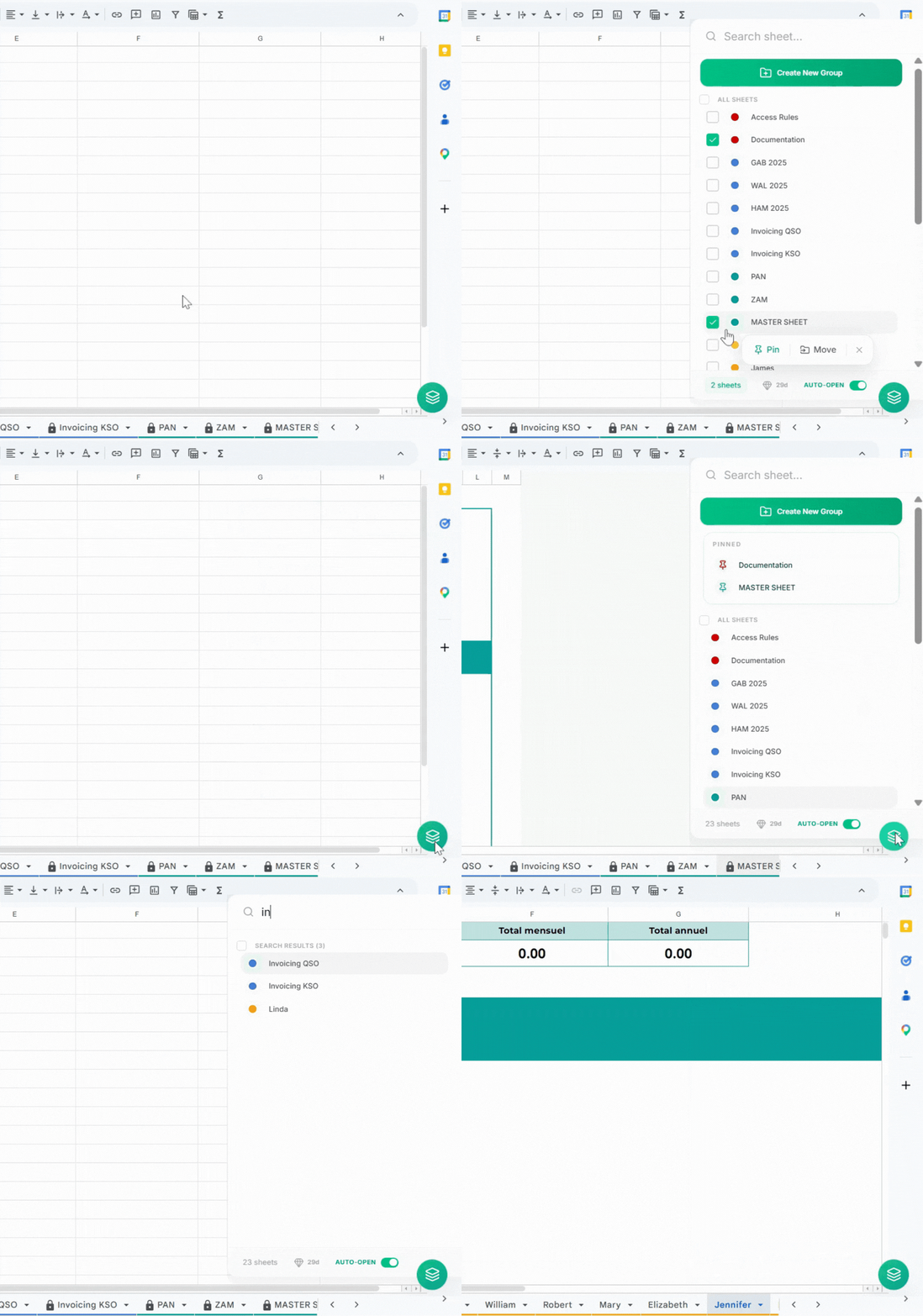
2. Pinning most-used sheets
For the sheets you visit daily (e.g. "Dashboard," "Weekly Report," "Main Data"), pinning ensures they always stay at the top in your sidebar. No more scrolling through 30 tabs. Try Sheets Organizer to pin your most important sheets.
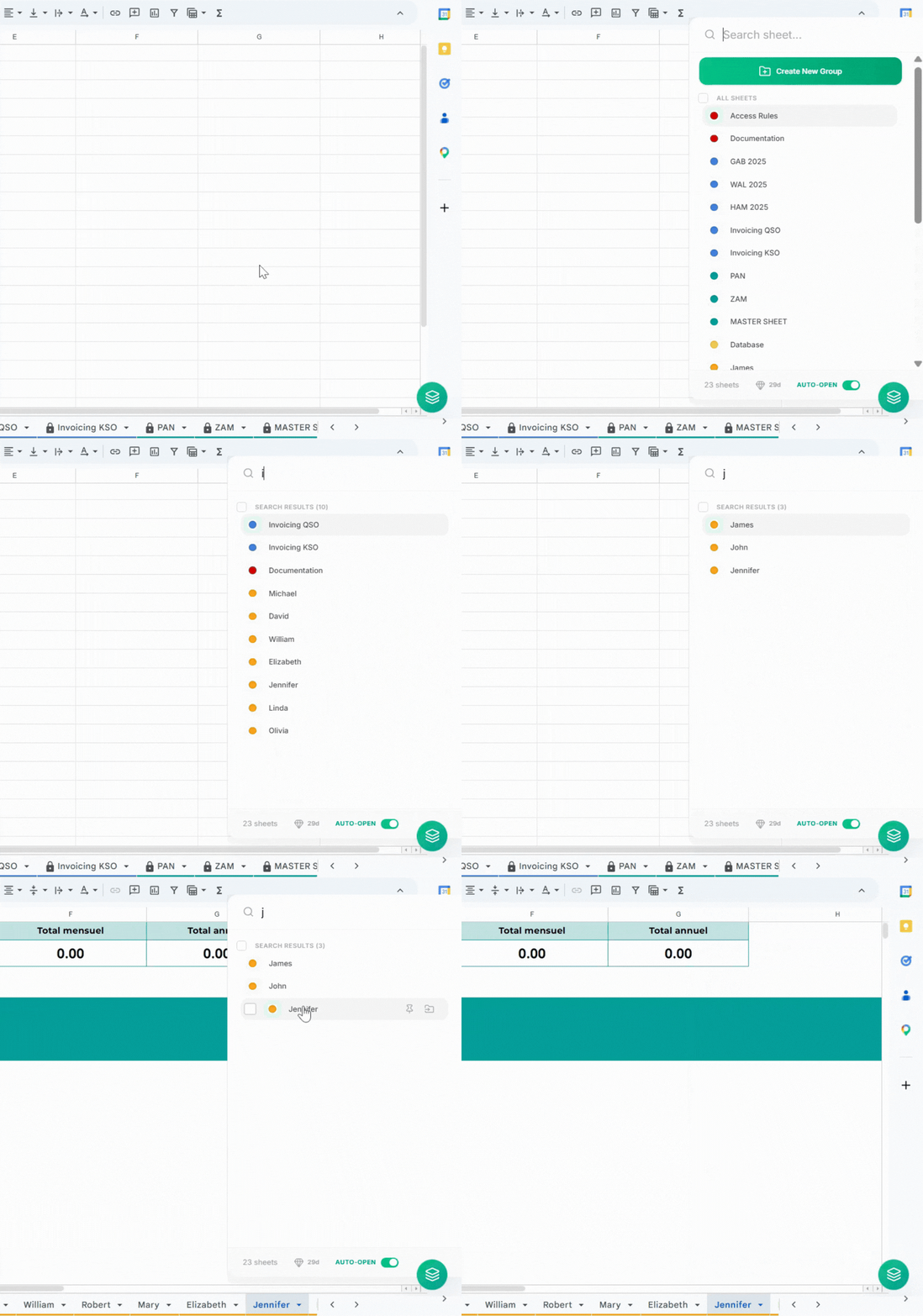
3. Search and Filter Sheets
The integrated search bar allows you to find any sheet instantly by typing just a few characters of its name. Coupled with real-time filtering, you can narrow down hundreds of tabs to exactly what you need in seconds. Try Sheets Organizer to search and filter your sheets.
Practical Tips to Implement Immediately
- Audit your current sheets: Take 10–15 minutes today to look through all the Sheets files and tabs you have. Identify duplicates, temporary sheets, or ones you rarely use.
- Define a naming convention: For example, `YYYY-MM-DD_Project_Task_Version` or `Topic_Subtopic_Status`. Use "Final," "Draft", "v2" only when necessary.
- Organize by folder first: Start grouping files by major themes (e.g. Year, Finance, HR, Marketing).
- Pin the essentials: Identify 3–5 sheets you use most and pin them immediately.
- Another easy way to find a sheet is to use the search bar. Just type the name of the sheet you want to find and you get a filtered list of sheets that match your search query.
Conclusion
Google Sheets are powerful, but when left untamed, they quickly become a source of confusion, wasted time, and friction, especially in team settings. Moving from chaos to clarity isn't just a matter of pride; it's a productivity multiplier. Tools like Sheets Organizer show that with thoughtful structure (folders), prioritized access (pinning), and efficiency (search and filter), you can dramatically reduce friction in your daily workflow.
If you're ready to reclaim your time, clean up your Sheets environment, and build a system that scales with your needs, don't wait. Start small: audit your existing documents. Consider trying out a tool like Sheets Organizer to give your process a turbo boost. Before long, you'll find that instead of asking "Where is that sheet?", you'll be right where you need to be, and fast.