
Tired of scrolling endlessly through dozens of tabs in your Google Sheets? Wish you could group related tabs together like you do with files on your Drive? Sheets Organizer brings folder organization to Google Sheets, a feature requested by so many Google Sheets users for so long!
With Sheets Organizer, you can finally group multiple tabs into organized folders, and maintain visual consistency across your entire spreadsheet. This comprehensive guide will show you exactly how to build folder systems that scale with your business.
Folder Organization Basics: Why Folders Matter
Google Sheets allows unlimited tabs in a single spreadsheet, but without organization, this becomes a productivity killer.
- No native folder system for grouping related sheets
- Horizontal tab scrolling becomes tedious with 20+ sheets
- No visual hierarchy to distinguish between different projects
- Difficulty of collaborating on sheets with multiple people
- Difficulty finding specific sheets among dozens of tabs
Sheets Organizer solves all these problems by bringing the folder functionality that Google Sheets has always needed. Folders provide:
- Logical grouping of related sheets
- Consistent formatting across related sheets
- Easy navigation through your folders
Creating Your First Folder
Creating Primary Folders
You can create folders that will serve as the main categories for your sheets. Here are some examples:
- • Years - 2024, 2025, 2026, etc.
- • Financial Management - All budget, expense, and financial reporting sheets
- • Human Resources - Employee data, payroll, and HR processes
- • Sales & Marketing - Lead tracking, campaigns, and sales data
- • Operations - Production, inventory, and operational processes
- • Administration - General admin tasks and documentation
- • Projects - Specific project-related sheets and deliverables
- • Templates & Resources - Reusable templates and reference materials
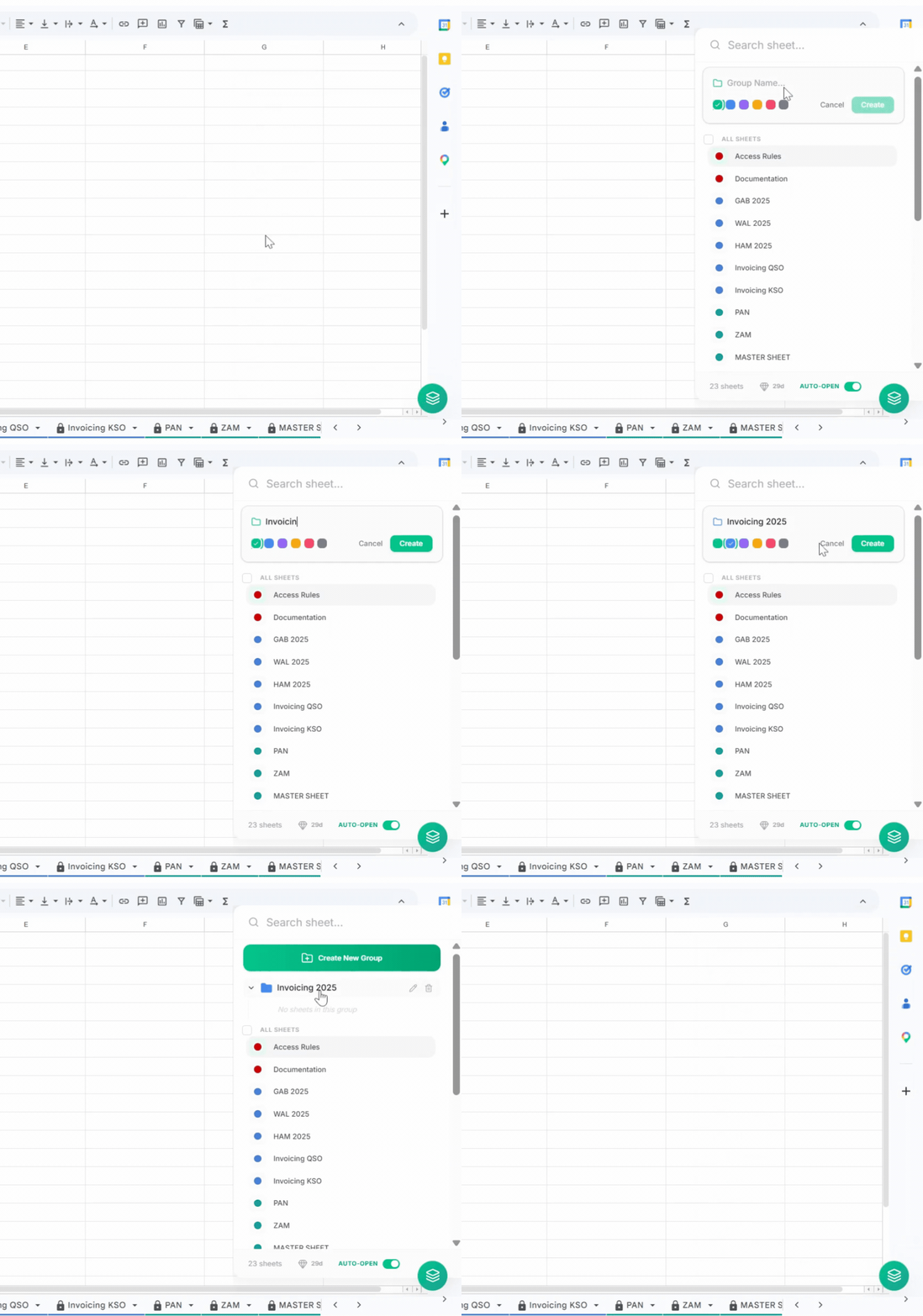
To create a folder in Google Sheets with Sheets Organizer:
- 1. Install Sheets Organizer from the Chrome Web Store
- 2. Press Ctrl + Shift + K (Windows) or Cmd + Shift + K (Mac) to open the sidebar
- 3. Click on the 'Create New Group' button
- 4. Enter a descriptive name for your folder
- 5. Pick a color that represents the category
- 6. Click 'Create' to add the folder
Adding Sheets to Folders
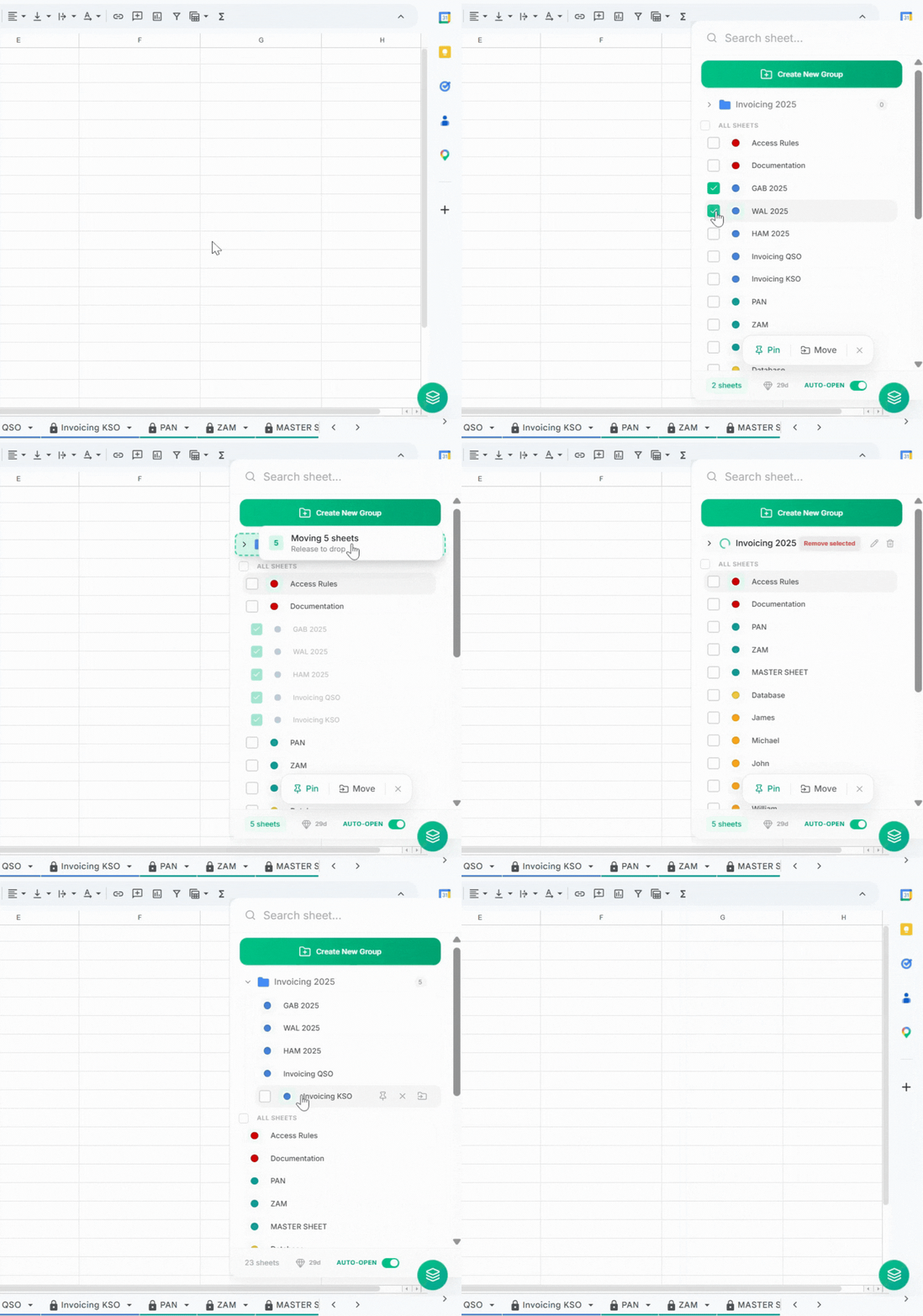
Once you've created your folders, you can start organizing your sheets. To move sheets into a folder, you can do the following:
- Select the sheets you want to organize
- Drag and drop the sheets into the folder you want to move them to
- Or click the 'Move' button that appears and pick the appropriate folder for your sheets
- All selected sheets will be grouped together in that folder
Pro Tip
Start with your most important or frequently used sheets first. This will give you immediate benefits and motivate you to continue organizing the rest.
Color Coding System
A good color coding system can help you quickly identify and organize your sheets. Here are some examples of how you can use color coding:
- 🔴 Red folders: Urgent or high-priority projects
- 🟢 Green folders: Completed or approved projects
- 🔵 Blue folders: Reference materials or templates
- 🟣 Purple folders: Archived or historical data
- 🟠 Orange folders: Client-specific projects
- ⚫ Gray folders: Administrative or support functions
You can color-code folders when you create them, or you can color-code folders after they've been created by editing the folder.
Implementation Example
A small consulting firm with 12 sheets can organize them as follows:
📊 Financial/
├── Budget 2024
├── Expenses Q4
└── Invoices

👥 Operations/
├── Client Projects
├── Team Schedule
└── Resources

📚 Templates/
├── Proposal Template
└── Invoice Template
Conclusion: Your Path to Organized Sheets
Creating an effective folder system in Google Sheets isn't just about organization—it's about reclaiming your time and mental energy. With Sheets Organizer, you finally have the tools to build folder hierarchies that scale with your business and make finding any sheet effortless.
Pro Tip
Ready to finally organize your Google Sheets tabs with folders? Try Sheets Organizer free and see how folders can transform your spreadsheet workflow.