
Managing Google Sheets with multiple tabs can quickly become overwhelming. If you're struggling to find the right sheet among dozens of tabs, you're not alone. This comprehensive guide shows you how to organize Google Sheets tabs efficiently and introduces a powerful solution for complex spreadsheets.
The Google Sheets Multiple Tabs Problem
Google Sheets allows you to create unlimited sheets within a single spreadsheet, up to 6 million cells total. Many teams prefer creating multiple sheets within a single spreadsheet over creating separate spreadsheets for each project, week, or data category. It's a convenient way to manage your data in some cases. However, this convenience comes with a productivity cost.
While managing fewer than 10 sheets is straightforward, productivity drops significantly once you exceed 15 sheets. You'll spend valuable time:
- Scrolling through horizontal tab bars
- Searching for specific sheets
- Dealing with constantly changing tab orders in collaborative environments
Built-in Google Sheets Tab Organization Features
Google Sheets comes with these standards built-in function to manage tabs.
- Right-click tabs to rename, delete, duplicate, or hide sheets
- Drag and drop to reorder tabs
- Color-code tabs for visual organization
- Select multiple tabs (Ctrl+click) for bulk operations
Limitations of Native Features
While these features help with basic organization, they fall short for complex spreadsheets with many tabs. There's no search functionality, no grouping system, and no way to pin frequently used sheets.
That's why I created Sheets Organizer - a Chrome extension that helps you manage your tabs efficiently, no matter how many sheets you have.
What Sheets Organizer Does
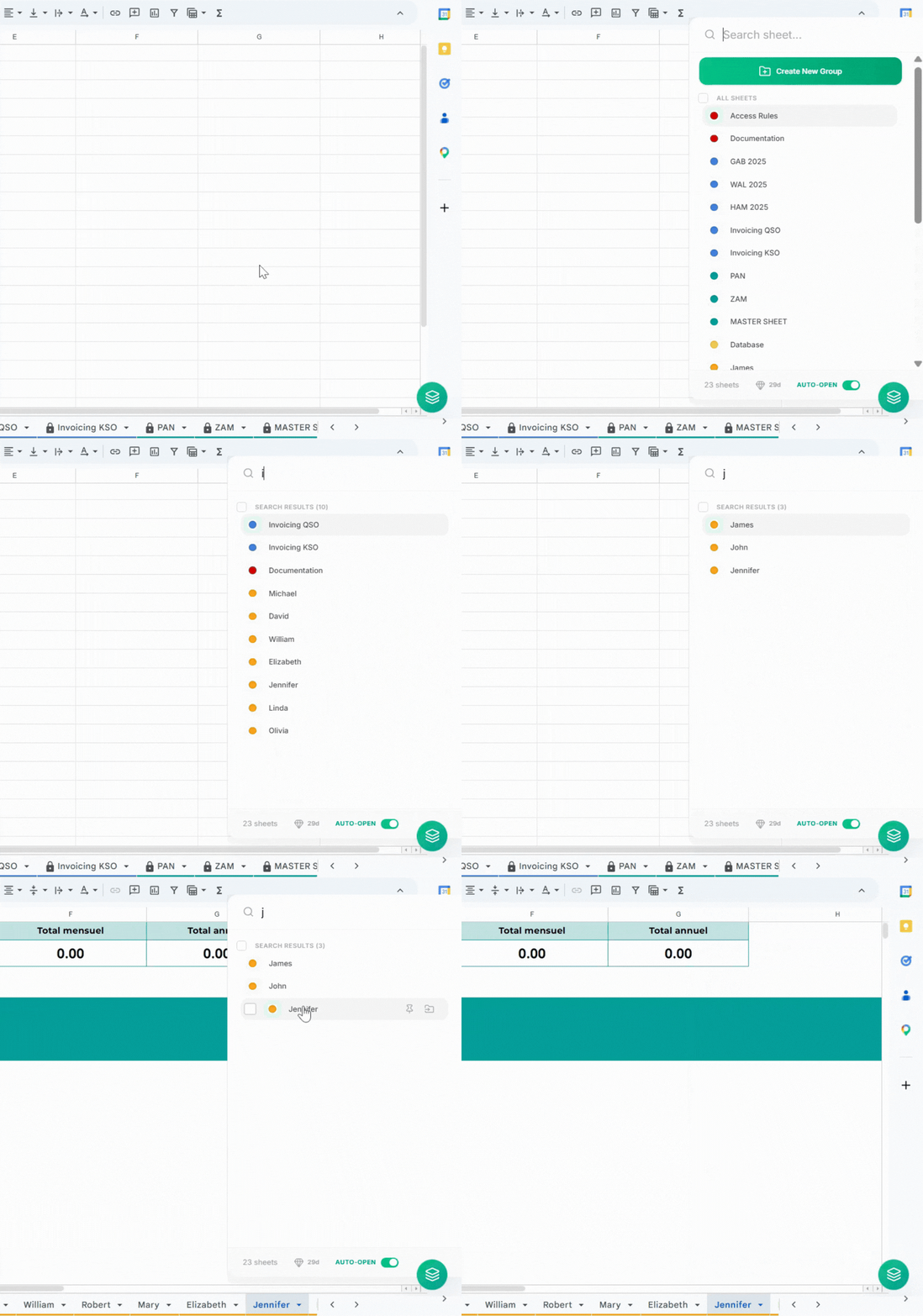
Sheets Organizer opens as a sidebar on the right side of your spreadsheet. It gives you five powerful features that Google Sheets doesn't have built-in.
1. Search Sheets Instantly
Instead of scrolling through dozens of tabs, just type the sheet name in the search bar. The extension filters your sheets in real time. Even with 100 sheets, you'll find the right one in 3 seconds.
2. Pin Your Most Important Sheets
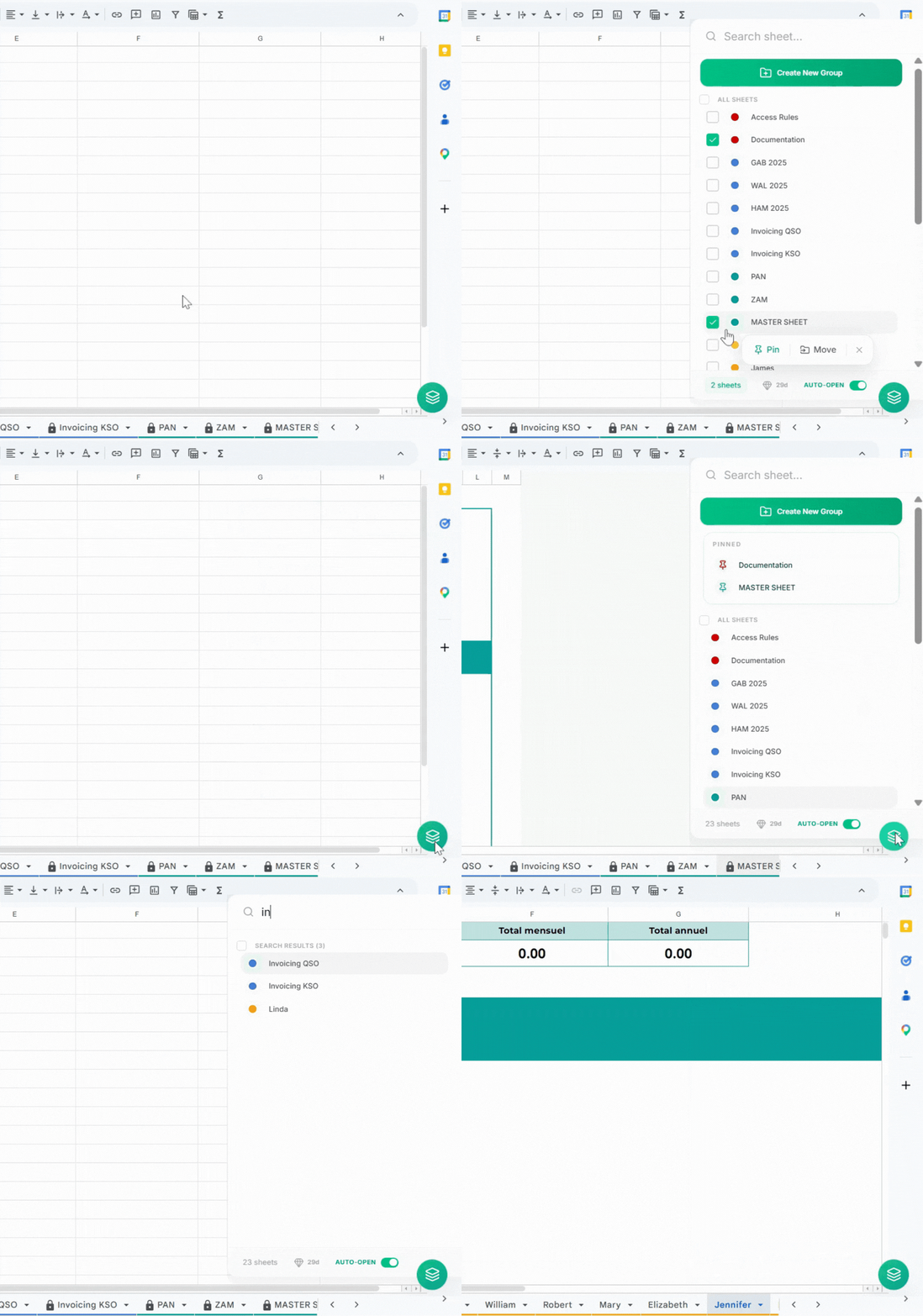
Some sheets you use all the time. Pin them so they always appear at the top of the sidebar when you open the extension. Even if team members rearrange the main tabs, your pinned sheets stay right where you need them.
3. Group Sheets Into Folders
This is the feature hundreds of Google Sheets users have asked for online. Google Sheets has no built-in folder system, but Sheets Organizer makes it simple.
Create a folder by clicking the "Create New Group" button. Then select related sheets, click the "Move" button that appears or drag and drop the sheets into the folder.
For example, you might have an "Invoicing" folder." When collaborating, you can tell teammates exactly where to find sheets: "It's in the blue Invoicing folder."

Who Needs This extension?
My goal in creating Sheets Organizer is to help professionals and teams improve productivity inside Google Sheets.
However, not everyone needs Sheets Organizer and I'm conscious of that from the start. If you have a spreadsheet containing less than 10 sheets, it's not difficult to manage your tabs with the built-in features of Google Sheets.
However, people with large spreadsheets containing over 15 tabs may find it difficult to navigate through sheets and handle them efficiently. It's these people that Sheets Organizer will serve the most. For example, I have one user of Sheets Organizer having a spreadsheet with 78 sheets and another one with 174 sheets. Imagine the difficulty without a tool like Sheets Organizer.
Try It Risk-Free
I would not like buying a tool that ends up not being useful. That's why I offer you a 30-day trial period where you can try all the features of the extension. Then if find it helpful, you can buy the subscription. $30 a year to save time and improve your workflow inside Google Sheets? It's a no brainer. It's a good ROI.
Thanks for reading 🫶