
The Problem: Finding Tabs in Large Spreadsheets
You've probably experienced this: you need to find a specific sheet in your Google Sheets spreadsheet, but there are 30, 50, or even 100+ tabs. You spend valuable time scrolling through the horizontal tab bar, trying to locate the right one. It's frustrating, time-consuming, and it happens multiple times throughout your workday.
Whether you're managing monthly reports, organizing project data, or tracking quarterly sales, large spreadsheets with many tabs become productivity bottlenecks. Without the right tools, you're left with:
- Scrolling endlessly through tabs
- Losing track of where you put specific sheets
- Wasting mental energy on navigation instead of focused work
- Struggling to maintain consistency in collaborative environments
The good news? There's a better way. This article covers three powerful features that help you find the right tab instantly, even in the largest spreadsheets: search functionality, folder organization, and pinning your most-used sheets.
Feature 1: Search Sheets by Name
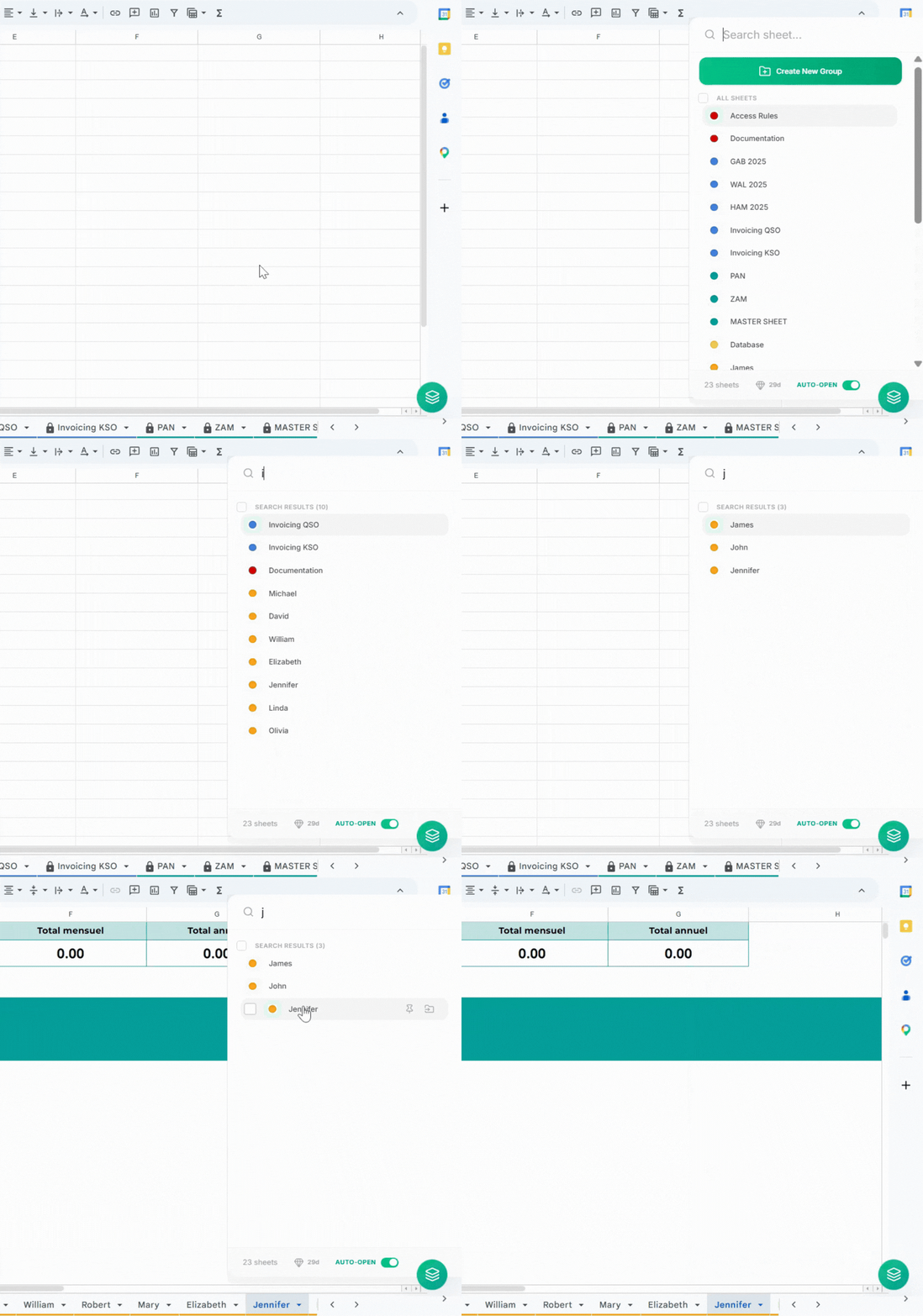
The fastest way to find a sheet in Google Sheets is through instant search. Sheets Organizer makes it simple to find any sheet instantly. Instead of scrolling through dozens or hundreds of tabs, you simply type what you're looking for and get instant results.
How Search by Name Works
- 1. When you use the search feature in Sheets Organizer:
- 2. Results appear in real-time as you type
- 3. Partial matches work (typing 'sales' finds 'Q1_Sales', 'Sales_Report', 'Annual_Sales')
- 4. Search is case-insensitive for easier finding
This means if you have 78 sheets in your spreadsheet (yes, people have that many), you can find any one of them in seconds simply by typing part of its name. No more scrolling or guessing.
Feature 2: Pin Your Most-Used Sheets
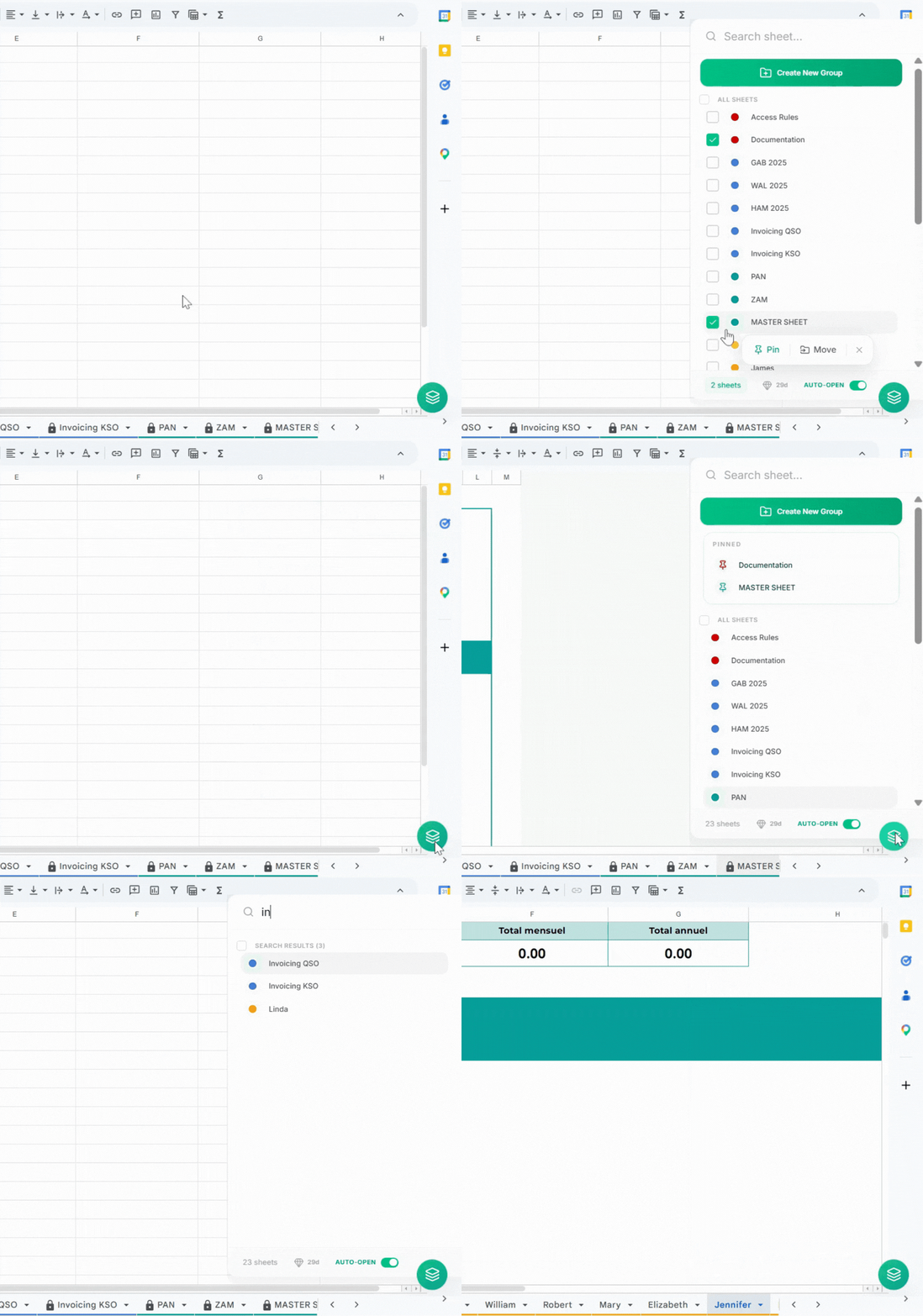
Some sheets you access constantly throughout your workday. Instead of searching for them each time, you can pin them so they always appear at the top of your sidebar. Sheets Organizer makes it simple to pin sheets.
How Pinning Works
- Always visible: Pinned sheets stay at the top of your sheet list every time you open the sidebar
- Quick access: No need to scroll through many tabs to find important sheets
- Visual distinction: Pinned sheets are clearly marked with a pin icon
- Fixed position: The order of pinned sheets in the sidebar is fixed—they always appear at the top
To pin sheets, select one or multiple sheets you want to pin and click the pin button. To unpin, select one or multiple pinned sheets you want to unpin and click the unpin button.
Even when team members rearrange tabs in collaborative spreadsheets, your pinned sheets stay right where you need them.
Best Practices for Pinning
Consider pinning sheets such as:
- • Your main dashboard
- • Frequently updated reference sheets
- • Critical data sheets you check multiple times per day
- • Templates or master sheets you use regularly
- • Current project sheets (re-pin new ones as projects change)
Pro Tip
Avoid pinning too many sheets—5-10 pinned sheets is a good maximum. Too many pinned sheets defeats the purpose of quick access.
Feature 3: Organize Sheets into Folders
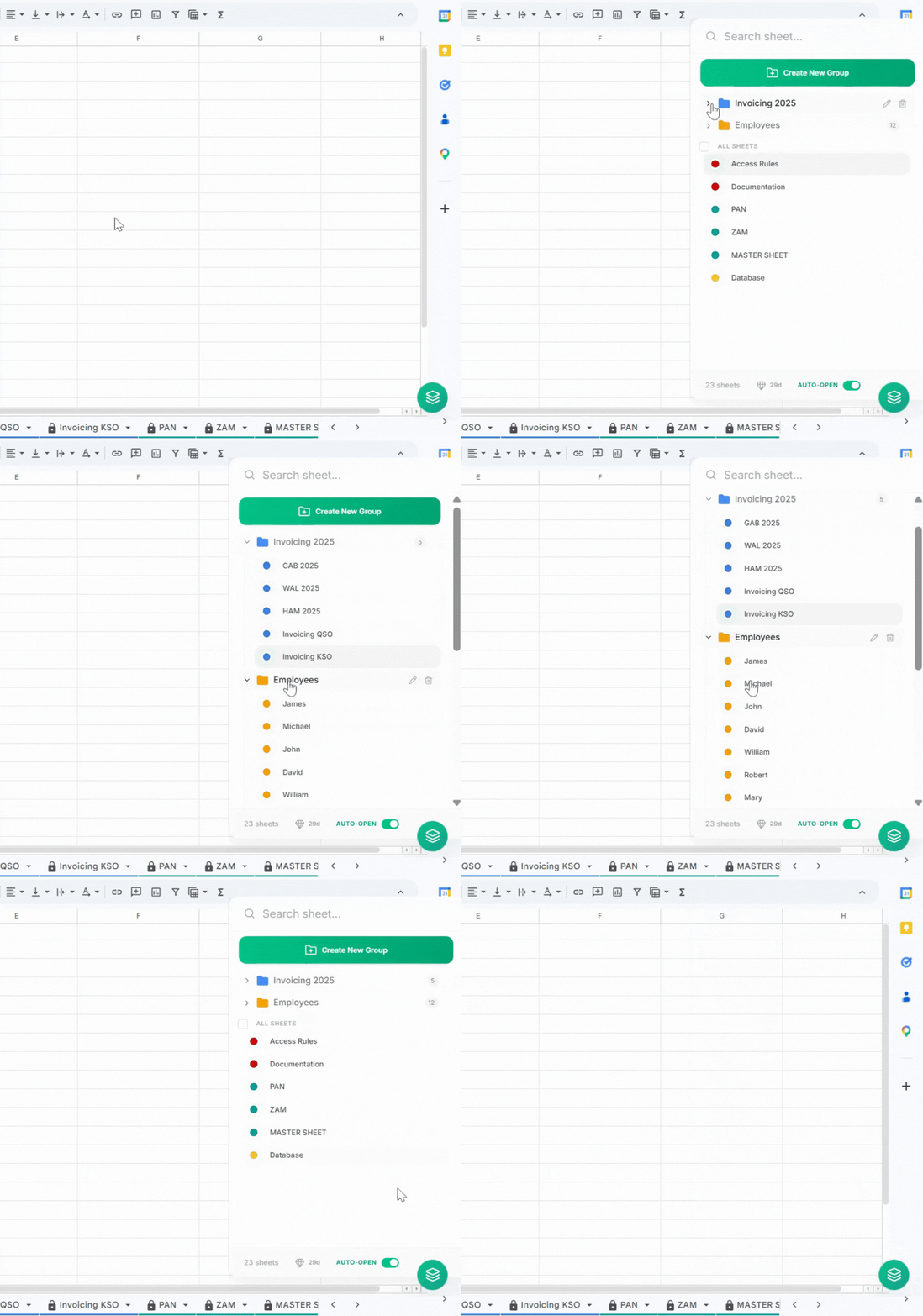
Google Sheets has no built-in folder system, but Sheets Organizer makes it simple to organize your sheets into folders. This feature is perfect for managing spreadsheets with many tabs.
How Folders Work
Folders let you
- Group related sheets together (e.g., all monthly reports in one folder)
- Navigate through your hierarchy easily
- Color-code folders for visual organization
- Tell teammates exactly where to find sheets
Creating Your First Folder
To create a folder in Google Sheets with Sheets Organizer:
- 1. Install Sheets Organizer from the Chrome Web Store
- 2. Press Ctrl + Shift + K (Windows) or Cmd + Shift + K (Mac) to open the sidebar
- 3. Click on the 'Create New Group' button
- 4. Enter a descriptive name for your folder
- 5. Pick a color that represents the category
- 6. Click 'Create' to add the folder

To move existing sheets to a folder:
- 1. Select the sheets you want to organize
- 2. Drag and drop the sheets into the folder you want to move them to
- 3. Or click the 'Move' button that appears and pick the appropriate folder for your sheets
- 4. All selected sheets will be grouped together in that folder

Navigating Your Folder Structure
Once you have folders set up: to go to a sheet in a folder, simply click on the folder icon to open it, then click on the sheet you want to open. Collapse or uncollapse folders to view or hide their contents by clicking on the folder icon.
Real-World Example
Imagine you're managing a spreadsheet with 30+ tabs covering different business areas. Without folders, finding 'March_Invoices' means scrolling through everything. With a simple one-level folder structure:
📁 Finance
   ├── January_Invoices
   ├── February_Invoices
   └── March_Invoices  ← right here

📁 HR
   ├── Employee_List
   └── Payroll

📁 Marketing
   ├── Q1_Campaign
   └── Q2_Campaign
Now you just open the Finance folder and your sheet is right there. No scrolling, no searching through 30 tabs.
Combining All Three Features for Maximum Efficiency
These features work even better when used together. Here's a practical workflow:
- Pin your most-used sheets (2 or 3 sheets you access daily)
- Organize remaining sheets into folders by category, project, or time period
- Use search when you need to find something quickly
- Color-code both folders and individual sheets for additional visual organization
- Re-evaluate and update your organization as your spreadsheet grows
This approach gives you multiple ways to find what you need:
- If it's something you use daily → It's pinned
- If it belongs to a category → It's in a folder
- If you remember part of the name → Search finds it instantly
Getting Started with Sheets Organizer
Sheets Organizer is a Chrome extension that opens as a sidebar on the right side of your spreadsheet. It provides these three powerful features (and more) to help you manage large spreadsheets efficiently.
To get started: Install Sheets Organizer from the Chrome Web Store, open any spreadsheet with multiple sheets, click the icon that appear at the bottom right corner of your spreadsheet, start by pinning your most-used sheets, create your first folder to organize related sheets, and use the search bar to find any sheet instantly
If you work with spreadsheets containing 15+ tabs, Sheets Organizer will likely become an essential part of your workflow.
Conclusion: From Scrolling to Finding
Finding tabs in large Google Sheets spreadsheets doesn't have to be a frustrating, time-consuming task. With search functionality, pinning, and folder organization, you can find any sheet in seconds, regardless of how many tabs your spreadsheet contains.
These three features transform your workflow:
- Search by name: Find any sheet instantly with a few keystrokes
- Pin frequently used sheets: Keep important tabs at your fingertips
- Organize into folders: Create logical groupings that scale with your needs
Whether you're managing a spreadsheet with 20 tabs or 200, these features help you maintain productivity and focus on what matters: your actual work, not finding your work.