
If you've searched for a way to pin tabs in Google Sheets, you've probably already discovered the short answer: Google Sheets doesn't have a native tab pinning feature.
There's no option in the right-click menu, no setting buried in preferences, nothing. The tab bar treats every sheet the same — your most-used dashboard sits alongside a template you opened once six months ago, and you scroll through all of them the same way every time.
This post explains what pinning would look like if Google offered it, why it's actually useful, and how to get the same functionality today with the Sheets Organizer Chrome extension.
What "Pinning a Tab" Would Mean in Google Sheets
In the context of Google Sheets, pinning a tab means marking specific sheets so they're always immediately accessible — regardless of how many other tabs exist in the workbook or where those tabs are positioned.
Think of it like browser tab pinning. When you pin a tab in Chrome, it stays on the left side of the tab bar, always visible, always one click away. You don't scroll past it. It doesn't get buried.
The equivalent in Google Sheets would be: you pin three or four sheets you use every day, and they're always at the top of your sheet list — regardless of how many other tabs exist or how often someone rearranges the tab order.
Google Sheets doesn't offer this. You can color-code tabs, you can reorder them, but there's no way to "lock" your most important sheets into a persistent, easily accessible position.
Why It Matters More Than It Might Seem
For a spreadsheet with 10 or 15 tabs, this isn't a significant problem. You can see most of your tabs at a glance, and finding one takes a couple of seconds.
But for workbooks with 30, 50, or 80+ tabs — which is common for finance teams, project managers, and anyone maintaining a long-running spreadsheet — the absence of pinning creates real friction. A few scenarios where it comes up:
- You have a master dashboard you check constantly. Without pinning, you scroll to it every time. If tabs get reorganized (or if a colleague moves things around), it might not even be where you left it.
- You're mid-task and need to switch between two or three sheets repeatedly. Without pinning, every switch involves locating the tab again in a crowded bar.
- You share the spreadsheet with others. Colleagues who open the file don't know where your key sheets are. There's no way to surface them without physically moving them to the front of the tab bar — which may not reflect a logical order for the rest of the workbook.
None of this is a crisis. But it's the kind of friction that adds up quietly over time.
How to Pin Tabs in Google Sheets (The Workaround)
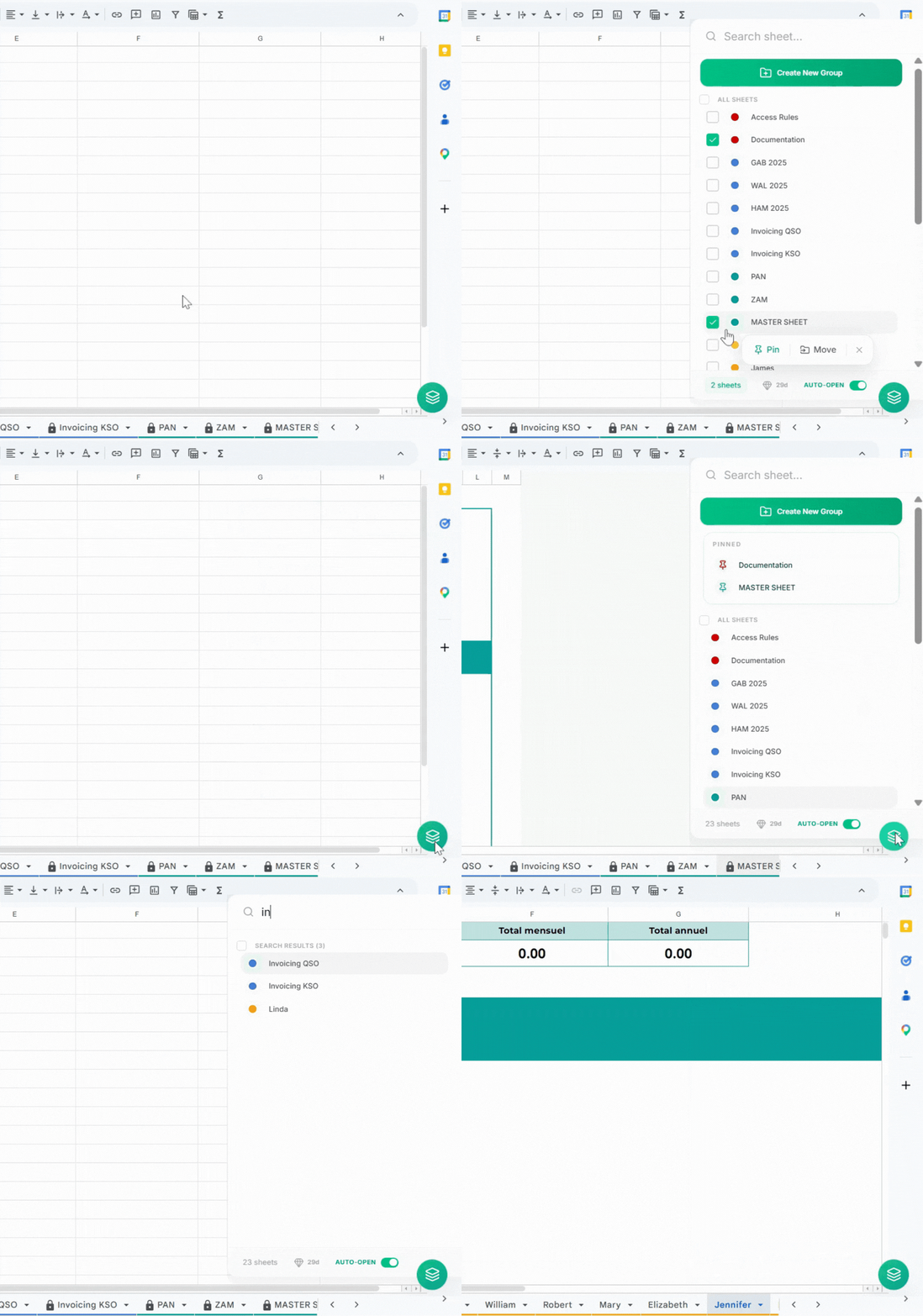
Sheets Organizer is a Chrome extension that adds a sidebar to Google Sheets with tab pinning, folder grouping, and search. The pinning feature works as follows:
- Pinned tabs appear permanently at the top of the Sheets Organizer sidebar, above all folders and other tabs
- They stay in that position regardless of how the tab bar is rearranged
- They're marked with a pin icon so they're visually distinct
- You can pin and unpin individual tabs at any time
This doesn't change anything about the native tab bar — your spreadsheet looks and works exactly the same. The pinning lives in the sidebar, which you open with `Ctrl + Shift + K` (Windows) or `Cmd + Shift + K` (Mac).
How to Pin a Tab
- Install Sheets Organizer from the Chrome Web Store
- Open your spreadsheet and press `Ctrl + Shift + K` to open the sidebar
- Find the tab you want to pin in the sidebar list
- Click the pin icon next to the tab name
- The tab moves to the top of the sidebar and stays there
To unpin, select the pinned tab and click the pin icon again.
What to Actually Pin
Pinning is most useful when kept selective. If you pin everything that feels important, the feature stops being useful — you've just created a second tab bar.
A practical guideline: pin the tabs you open multiple times per day, not just the ones that are important. There's a difference.
Some examples of what tends to be worth pinning:
- A main dashboard or summary sheet you check constantly
- The current month's active report (and swap it out each month)
- A reference sheet you consult frequently — a lookup table, a rate sheet, a team roster
- A working sheet for an ongoing task that spans several days
Pro Tip
3 to 5 pinned tabs is a reasonable ceiling for most workbooks. Beyond that, it becomes harder to scan quickly and the value of instant access starts to erode. Pinning in Sheets Organizer is also personal — it's stored in your browser. If a colleague uses the same spreadsheet, they can set up their own pinned tabs based on what they use most.
Pinning Alongside Search and Folders
Pinning works well on its own, but it fits into a broader navigation system when combined with the other features in Sheets Organizer:
- Pin the 3–5 tabs you open every day — zero search required
- Use folders to give structure to the rest of your tabs
- Use search when you need a tab you haven't pinned and don't want to browse folders
Together, these three approaches cover most navigation scenarios in a large spreadsheet without any of them needing to do everything.
A Limitation Worth Mentioning
Sheets Organizer's pinning feature lives in the sidebar, not in the native Google Sheets tab bar. This means pinned tabs aren't visible to colleagues unless they also have Sheets Organizer installed.
Conclusion
Google Sheets doesn't have native tab pinning, and there's no indication that's going to change. For workbooks with a lot of tabs, that's a noticeable gap — it means your most-used sheets are treated the same as every other tab, and finding them requires the same effort every time.
Sheets Organizer's pinning feature fills that gap in a straightforward way. It's not a complex solution — you mark a tab as pinned, it stays at the top of the sidebar, and you click it when you need it.
If you work with large Google Sheets workbooks regularly, it's worth trying.