
Tab naming and color-coding are two of the most underused features in Google Sheets. Most people either ignore them entirely — leaving tabs with default names like "Sheet1", "Sheet2", "Copy of Sheet3" — or apply them inconsistently, which ends up being almost as unhelpful as not using them at all.
This post covers how to use both features well, including some practical conventions that scale as your spreadsheet grows. Toward the end, we also look at where these native features hit their limits and what to do from there.
Why Tab Names and Colors Matter
In a small spreadsheet with 5 or 6 tabs, naming and color-coding are nice to have. In a workbook with 30, 50, or more tabs, they become genuinely important.
A few reasons:
- Navigation. When you're scrolling through a long tab bar, clear names and distinct colors let you find the right tab faster. You're scanning, not reading every name carefully.
- Shared spreadsheets. When you share a workbook with a colleague, your tab names are the only orientation they get. A tab called "Budget vs Actuals - Q1 2026" tells them exactly what's there. "Sheet7" tells them nothing.
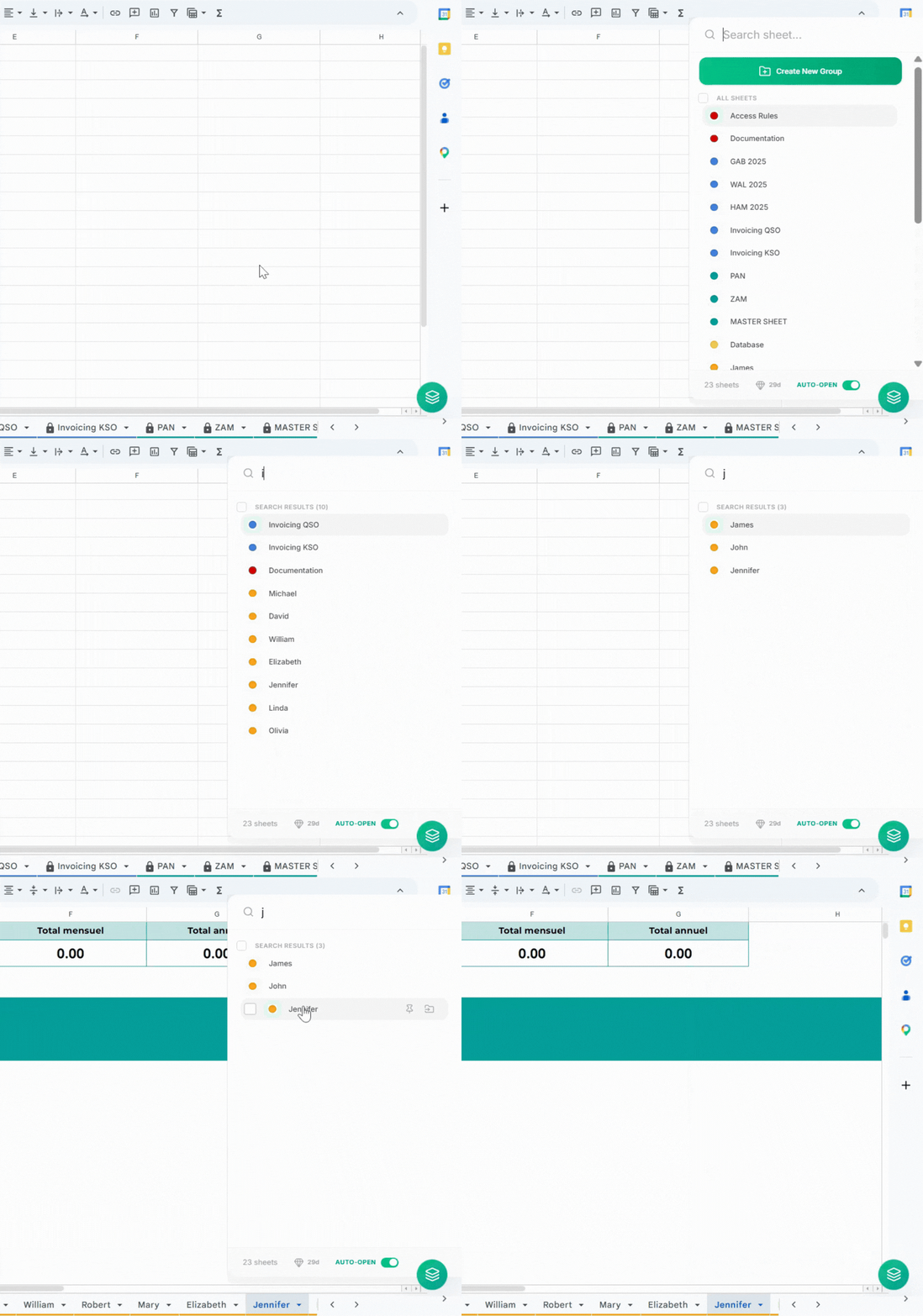
- Search. If you use a tool with tab search functionality, the quality of your tab names directly determines how well search works. Searching for "invoice" finds "Invoices - March 2026" instantly. It can't help you find "Tab 14".
- Long-term maintenance. Spreadsheets that are maintained for months or years accumulate tabs. Clear naming conventions make it much easier to identify what's current, what's archived, and what can be deleted.
How to Rename a Tab in Google Sheets
Renaming a tab is straightforward:
- Double-click the tab name at the bottom of the screen, type the new name, and press Enter
- Or right-click the tab and select Rename
Tab names can be up to 100 characters, though shorter is generally better for readability in the tab bar.
A Practical Naming Convention
There's no single correct naming system — it depends on what's in your spreadsheet. That said, a few principles tend to work well across different contexts.
Use a consistent format
Pick a format and stick to it across all tabs. A common and readable approach is:
[Type] - [Descriptor] - [Period or Version]For example:
- `Budget - Annual - 2026`
- `Expenses - Q1 - 2026`
- `Report - P&L - March`
- `Template - Invoice`
The key is consistency. If some tabs use "Q1" and others use "January-March" and others use "Jan 2026", search and scanning both become harder.
Be specific enough to distinguish similar tabs
The most common naming problem is tabs that look the same at a glance. "Report - January", "Report - February", "Report - March" are easy to tell apart. "Monthly Report", "Monthly Report 2", "Monthly Report Final" are not — especially when names get truncated in a crowded tab bar.
Avoid generic words as the first word
Tab names that start with "Sheet", "Data", "Copy", "New", or "Temp" tend to cluster together visually and are harder to scan. Front-load the most meaningful word: `Payroll - March` is easier to spot than `March Payroll Data`.
Include dates or periods where relevant
For time-based data — monthly reports, quarterly summaries, annual budgets — including the period in the tab name makes a real difference when you're looking for something specific later.
A format like `MMM YYYY` (e.g., `Jan 2026`) or `Q1 2026` is compact and easy to read.
How to Color-Code Tabs in Google Sheets
To change a tab's color:
- Right-click the tab at the bottom of the screen
- Select Change color
- Pick a color from the palette
That's it. The tab name stays the same; the background color of the tab changes.
Using colors meaningfully
The pitfall with color-coding is applying it decoratively rather than informationally. A tab that's red because red "felt right" when you created it isn't useful. A tab that's red because your team uses red to flag work-in-progress is useful.
A few approaches that tend to work:
- Color by category. Assign a color to each functional area and apply it consistently. For example: blue for Finance, green for HR, orange for Projects, gray for Archive. This gives you a quick visual map of your tab bar without reading every name.
- Color by status. Use color to indicate where a sheet is in a workflow. For example: yellow for drafts, green for finalized, gray for archived. This works well for teams doing periodic reporting where tabs move through a clear lifecycle.
- Combine both approaches. Use category colors at the folder level and status colors on individual tabs. This is more involved to maintain but can work well for complex workbooks.
Pro Tip
Whatever system you choose, document it somewhere — even just a "README" tab at the front of the workbook that explains the color conventions. Without that, the system breaks down as soon as someone new opens the spreadsheet.
Where Native Features Have Limits
Tab naming and color-coding are built into Google Sheets and they're genuinely useful. But they have a few limitations worth understanding.
- Colors don't group tabs. Color-coding gives you a visual cue, but it doesn't actually group related tabs together. Your Finance tabs might be blue, but they're still scattered across the tab bar wherever they were created. You have to physically drag tabs to group them by color, and that order gets disrupted whenever someone adds a new tab.
- There's no hierarchy. All tabs exist at the same level. There's no way to collapse a group of related tabs, or to distinguish "active" tabs from "archived" ones without moving them or hiding them.
- Naming conventions drift. In solo workbooks, you can enforce your own conventions. In shared workbooks, conventions drift unless everyone on the team is aligned — and keeping that alignment takes ongoing effort.
- Search still requires a tool. Good tab names make search more effective, but Google Sheets doesn't have a native tab search bar. The "All sheets" menu at the bottom left shows a list of tabs, but there's no way to filter it by typing.
These aren't reasons to abandon naming and color-coding — they're still the foundation of good tab organization. But for workbooks that grow beyond a few dozen tabs, they benefit from a layer of structure on top.
Taking It Further with Folders
If you find that naming and color-coding aren't quite enough for a large workbook, the next step is folder grouping — organizing tabs into labeled, collapsible groups that give your workbook a navigable structure.
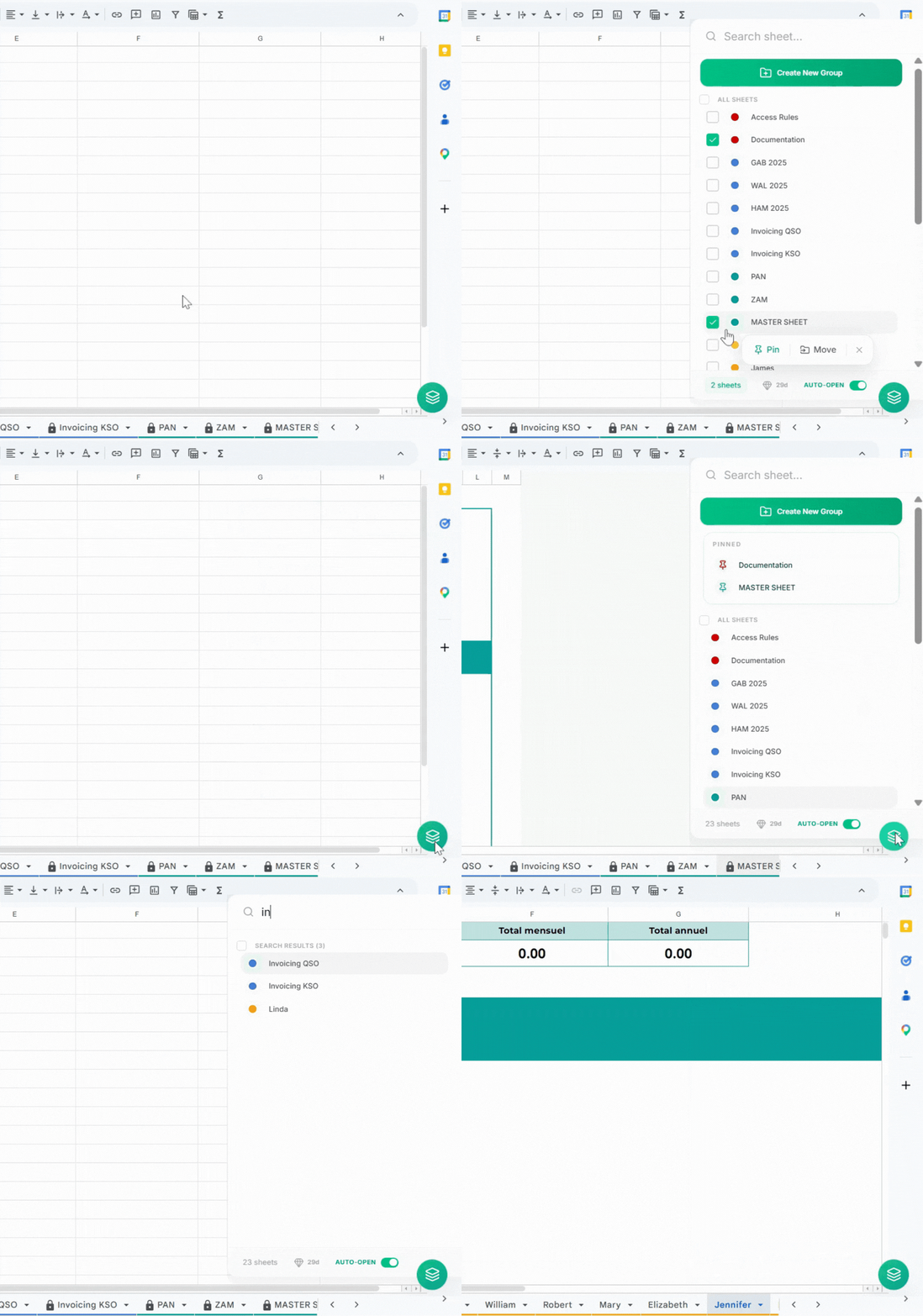
Google Sheets doesn't have native folders. Sheets Organizer is a Chrome extension that adds them through a sidebar. You create folders, color-code them, and drag tabs into them. The native tab bar stays unchanged — the folders are purely for navigation in the sidebar.

The combination that works well for most large spreadsheets:
- Consistent tab names so search and scanning both work
- Color-coding by category for quick visual scanning
- Folders to group related tabs and give the workbook a clear structure
- Pinned tabs for the 3–5 sheets you open every day
Naming and color-coding are the first two steps. They work without any additional tools and they're worth doing regardless of what else you use.
A Quick Reference
| Do | Avoid |
|---|---|
| `Expenses - Q1 - 2026` | `Sheet4` |
| `Report - P&L - March` | `Monthly Report Final v2` |
| `Template - Invoice` | `Copy of Invoice Template` |
| `Archive - 2024` | `Old Stuff` |
Color-coding approaches
| Approach | Example |
|---|---|
| By category | Blue = Finance, Green = HR, Orange = Projects |
| By status | Yellow = Draft, Green = Final, Gray = Archive |
| Combined | Category colors on folders, status colors on individual tabs |
Conclusion
Naming and color-coding tabs well takes a few minutes to set up and pays back that time over the life of a spreadsheet — especially once it's shared with others or grows to dozens of tabs.
The main thing is consistency. A good system applied inconsistently is only marginally better than no system at all. Pick a naming format, pick a color logic, document them briefly, and stick to them.
If you're working with a larger workbook and want to add folder structure and search on top of this foundation, Sheets Organizer is free to try.