
Finance teams tend to accumulate tabs faster than most. A spreadsheet that starts with a handful of sheets for budget tracking grows, month by month, into a workbook with payroll records, expense reports, invoices, forecasts, and year-end summaries — all living side by side in an endless horizontal tab bar.
Google Sheets handles the data just fine. The navigation is where things get difficult.
This post looks at how finance teams typically run into tab management problems, and offers a practical folder structure you can adapt to your own workbook using the Sheets Organizer Chrome extension.
Why Finance Workbooks Grow So Large
Finance work has a natural tendency toward tab accumulation. A few reasons:
- Monthly cadence. Budget vs. actuals for January, February, March... by the end of the year, that's 12 tabs for a single report type. Add a second year and you're at 24.
- Multiple report types. Payroll, invoices, expenses, cash flow, P&L — each category has its own sheets, often one per month or per entity.
- Multiple entities or cost centers. Teams that track data for different departments, clients, or subsidiaries often duplicate entire sets of sheets for each one.
- Working files vs. reference files. Active drafts sit next to finalized reports, templates, and archived data — all in the same workbook.
A spreadsheet that has been maintained for two or three years can easily reach 60, 80, or even 100 tabs. Most of those tabs are legitimate and necessary. The problem isn't the data — it's finding it quickly.
What Makes Tab Navigation Painful for Finance Teams
A few specific friction points that tend to come up for finance teams:
- Tab names get cut off. With many tabs open, the tab bar gets crowded and Google Sheets shrinks each tab's display width. Even reasonably short names can become hard to read, and similar tab names — 'Expenses Jan', 'Expenses Feb' — become easy to confuse.
- Month-end pressure. When you're closing the books and need to cross-reference three different sheets quickly, scrolling through 70 tabs is a real interruption.
- Sharing with stakeholders. A CFO or department head who opens the spreadsheet occasionally has no orientation. Without structure, they either call you or give up.
- Onboarding new team members. Getting a new analyst up to speed on a complex workbook takes time. A clear folder structure reduces that considerably.
A Practical Folder Structure for Finance Workbooks
There's no single correct structure — it depends on how your team works and what's in your workbook. That said, here's a starting point that works for most finance teams managing a medium-to-large spreadsheet.
Option A: Organize by Function
This works well when your workbook covers multiple financial functions and each function has several tabs.
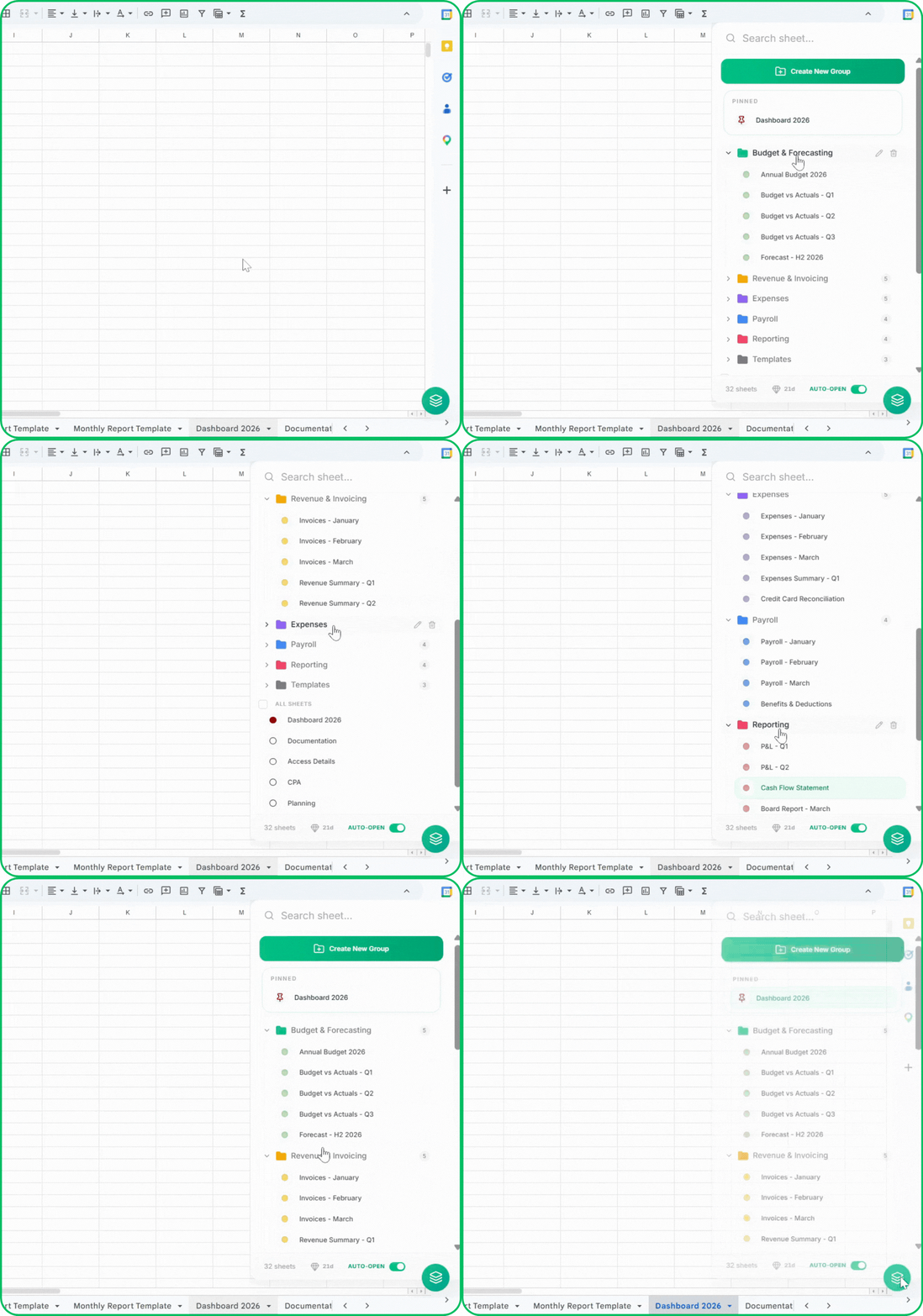
📊 Budget & Forecasting
   ├── Annual Budget 2026
   ├── Budget vs Actuals - Q1
   ├── Budget vs Actuals - Q2
   ├── Budget vs Actuals - Q3
   └── Forecast - H2 2026

💰 Revenue & Invoicing
   ├── Invoices - January
   ├── Invoices - February
   ├── Invoices - March
   ├── Revenue Summary - Q1
   └── Revenue Summary - Q2

💸 Expenses
   ├── Expenses - January
   ├── Expenses - February
   ├── Expenses - March
   ├── Expenses Summary - Q1
   └── Credit Card Reconciliation

👥 Payroll
   ├── Payroll - January
   ├── Payroll - February
   ├── Payroll - March
   └── Benefits & Deductions

📋 Reporting
   ├── P&L - Q1
   ├── P&L - Q2
   ├── Cash Flow Statement
   └── Board Report - March

📁 Templates
   ├── Invoice Template
   ├── Expense Report Template
   └── Monthly Report Template

📦 Archive
   └── (2024 and older sheets)
Option B: Organize by Time Period
This works better when the workbook is primarily monthly reporting and everything is structured around the same calendar rhythm.
📅 January 2026
   ├── Budget vs Actuals
   ├── Invoices
   ├── Expenses
   └── Payroll

📅 February 2026
   ├── Budget vs Actuals
   ├── Invoices
   ├── Expenses
   └── Payroll

📅 March 2026
   ├── Budget vs Actuals
   ├── Invoices
   ├── Expenses
   └── Payroll

📊 Annual Overview
   ├── Annual Budget 2026
   ├── YTD Summary
   └── Forecast

📋 Templates
   └── Monthly Pack Template

📦 Archive
   └── (2024 and older)
Which one to choose: Option A is usually better for teams that regularly need to look across months within a category — for example, comparing March invoices to April invoices. Option B works better when each month is a self-contained package reviewed as a unit.
Pro Tip
Keep folders to a single level. It's tempting to create sub-folders (e.g., a "Q1" folder inside "Expenses"), but a flat structure with well-named tabs is generally faster to navigate than a deep hierarchy.
Tips Specific to Finance Workbooks
- Pin your most-used tabs. In most finance workbooks, there are 3–5 tabs you open multiple times a day: the current month's actuals, the annual budget, the cash flow tracker. Pinning these means one click instead of searching every time.
- Use a consistent tab naming convention. This matters more for finance teams than most, because tab names are your primary way of distinguishing similar sheets. A format like `[Type] - [Period]` (e.g., "Expenses - March 2026") makes tabs easier to find by search and easier to read in a list.
- Put the Archive folder at the bottom. Older data should be accessible but out of the way. Moving closed-year tabs to an Archive folder keeps your active folders clean without deleting anything.
- Color-code by status, not just by category. One approach that works well for finance: use color to indicate the state of a folder. For example, green for finalized/closed periods, orange for the current active month, gray for archive. This gives you a quick visual read on where things stand without opening anything.
Setting This Up with Sheets Organizer
Google Sheets doesn't have a native folder feature, so you can't implement the structures above without a tool. Sheets Organizer is a Chrome extension that adds folder grouping, tab search, and tab pinning to Google Sheets through a sidebar.
To set up the folder structure:
- Install Sheets Organizer from the Chrome Web Store
- Press `Ctrl + Shift + K` (Windows) or `Cmd + Shift + K` (Mac) to open the sidebar
- Click Create New Group, name the folder (e.g., "Budget & Forecasting"), and pick a color
- Drag your tabs into the appropriate folders, or use the Move button to assign multiple tabs at once
- Pin 3–5 tabs you open every day to the top of the sidebar
For a workbook with 60–70 tabs, the initial setup takes roughly 20–30 minutes. After that, the sidebar replaces the tab bar as your main way of navigating.
Pro Tip
Before setting up folders, do a quick pass through all your tabs and move anything older than 12–18 months into an Archive folder. It's easier to organize 45 active tabs than 70 mixed ones.
Common Mistakes to Avoid
- Too many folders. Finance workbooks have a lot of natural categories, but resist going beyond 7–8 folders. More than that and the sidebar starts to resemble the original problem.
- Mixing active and archived tabs in the same folder. Keep Archive separate. When someone opens the Expenses folder, they should see current-year data, not 2022 records.
- Inconsistent tab naming. If some tabs say "Jan" and others say "January" and others say "01-2026", search becomes less reliable. Pick a format and stick to it.
- Not revisiting the structure. At year-end, move the previous year's tabs to Archive and start fresh folders for the new year. A 10-minute cleanup prevents the workbook from slowly drifting back into disorganization.
Conclusion
Finance workbooks grow large by nature, and Google Sheets doesn't offer much help once you're past a few dozen tabs. A simple folder structure — organized by function or by time period, depending on how your team works — makes a meaningful difference in how quickly you can navigate and how easily you can bring others into the workbook.
The structures in this post are starting points. Adapt them to fit how your team actually works, and revisit them as the workbook grows.